
Connect YouTube
YouTube is the most capable of the connections: you can publish video, read and reply to comments, hide and delete them, and pull view counts back into your reports. There’s no special account type to arrange first, which is what makes it a good one to start with.
Connect it
Section titled “Connect it”-
Open Settings then Connected Accounts in your workspace and press Connect Account.
-
Pick YouTube. You’ll land on Google’s own sign-in and consent screen.
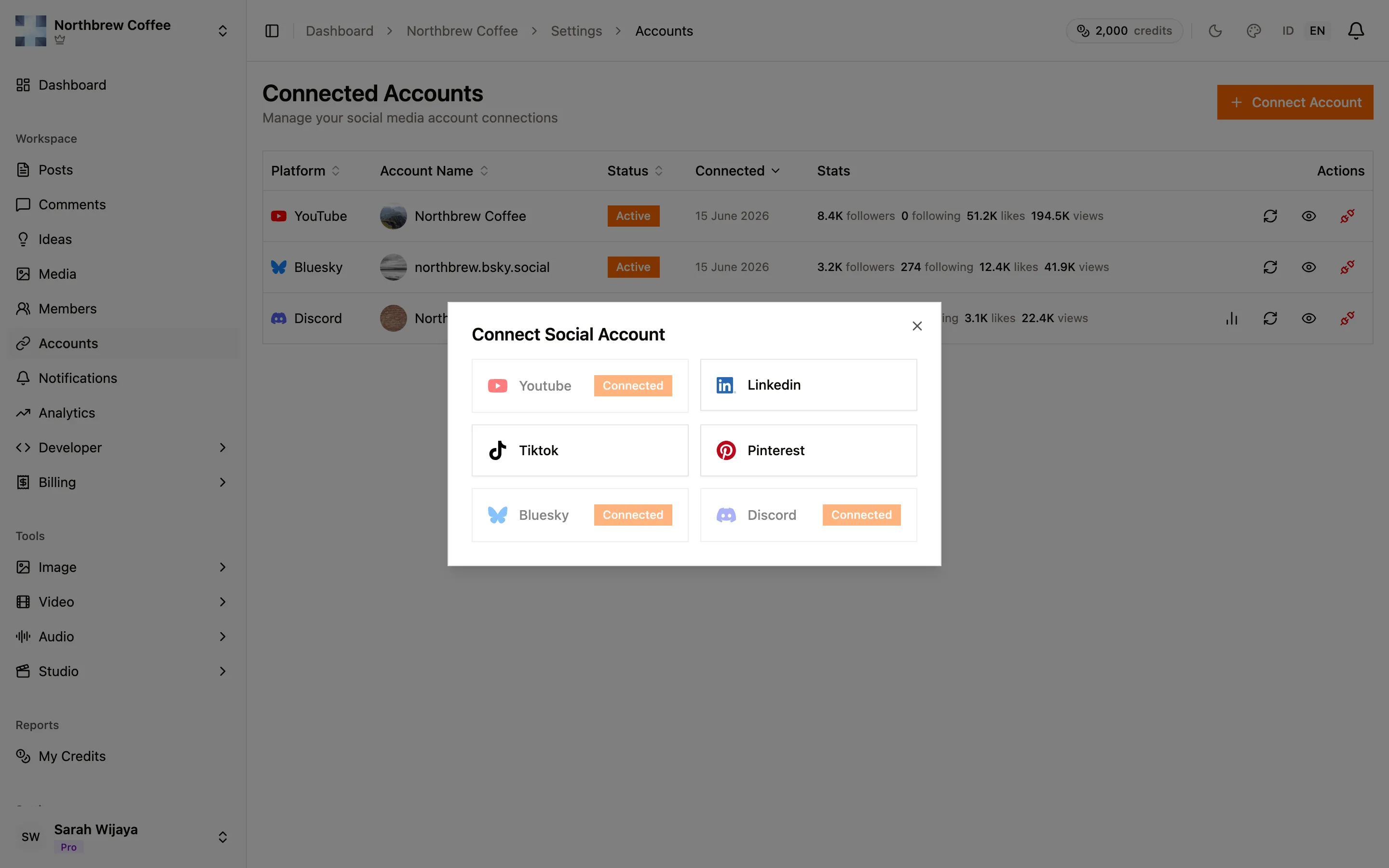
-
Sign in with the Google account that owns the channel, and approve the permissions. Google asks for three: manage your channel, upload videos, and manage comments and captions. Publiz uses all three, so declining one leaves part of the app quietly broken.
-
You come back to Publiz and the channel appears in the list with its name and avatar.
What YouTube allows
Section titled “What YouTube allows”These limits come from YouTube, so no plan changes them.
- Every YouTube post needs a video. A post with only an image or only text is rejected. Attach a video file and it uploads with the post.
- Titles cap at 100 characters. If you leave the title empty, Publiz uses the first 100 characters of your caption instead, which is rarely the title you actually wanted. Write one.
- Descriptions cap at 5,000 characters, which is what your caption becomes.
- Hashtags become YouTube tags, under a combined 500-character cap. Anything past that is dropped automatically, so put the tags that matter first.
Options worth setting
Section titled “Options worth setting”The composer exposes three YouTube-specific settings when a YouTube account is selected:
- Privacy: public, unlisted (only people with the link), or private (only you). Public unless you change it. Unlisted is the safe way to test a scheduled upload without an audience seeing it.
- Made for kids is the COPPA declaration, and it is required — the composer will not let a YouTube post through until you answer yes or no. It’s your legal statement about the content, so answer it deliberately.
- Notify subscribers is on by default. Turn it off and the upload stays out of subscribers’ notifications and activity feed, which is worth doing when you publish several videos in a row.
Comments
Section titled “Comments”YouTube supports everything Publiz can do with comments: read them, reply as the channel, hide them, and delete them. Among the platforms you can connect, only YouTube and Discord support hiding, so if moderation is the reason you’re here, YouTube is the strongest option.
When it doesn’t work
Section titled “When it doesn’t work”Publishing fails with a permissions error. A scope was declined on the consent screen, or access was revoked from the Google account’s security settings. Reconnect and approve all three.
It stopped working after a while. Google access expires and needs renewing. The account shows a warning in Connected Accounts before it lapses, and reconnecting clears it.
A video post failed but the caption looks fine. Check the file itself. Uploads have to finish on YouTube’s side, and an oversized or unsupported file fails there rather than in Publiz.
You connected the wrong channel. Reconnect and pick a different channel on Google’s screen. If Google skips the picker because it remembers your last choice, sign out of the Google account in that browser first.